The standard “treacherous” probability problem is the famous Monty Hall problem. Some of the issue is translating a word problem into math terms, and a lot of it is unfamiliarity with probabilistic reasoning (most majors don’t spend a lot of time on this). I think I have found one that is even thornier: “Boy Born on Tuesday.”
I really like Peter Winkler discussion of the seemingly simple probability problem “Boy Born on Tuesday” from his Mathematical Puzzles CRC Press, 2024, pp. xix, xcii, 113-114.
Instead of stealing his thunder I’ll merely present a simplified version in terms of coin flips. I’ll have Python enumerate all the cases to get the answer here, and leave the reasoning to interested readers.
I restate the problem as:
A person flipped two independent fair (50/50 chance of heads or tails) each on a random independent uniformly chosen day of the week (7 days, Sunday through Saturday, duplicate days allowed, chosen independent of any coin flip results). If they truthfully report “I had at least one heads result on a Tuesday”, then what is the probability that both coin flips came up heads?
This is to emphasize this really is a probability problem, not a subtle biology issue (such as rates of identical twins or such).
It turns the statement is leaking information about the flip. For example it eliminates cases where they didn’t flip on any Tuesdays, and the case where they saw two tails results on a Tuesday. The leaked information means the probability of both coin flips coming up heads (conditioned on the leaded information) is not any of the simple guesses such as 0, 1/4, 1/3, 1/2, 2/3, 3/4, or 1.
This problem is considered hard by most on first exposure. It isn’t that the combinatorics that is hard here, it is the usual trap of trusting intuition over calculation when reasoning about probabilities. In this case intuition tends to be weak (the problem is a bit artificial, therefore a bit unfamiliar) and the obvious calculation is very non-informative (unappetizing case enumeration).
Here I work some warm-up problems directly in Python (such as the famous “at least one of the two is heads, what is then the probability both are heads”) and then the “Boy Born on Tuesday” problem. For more discussion I recommend Peter Winkler “Boy Born on Tuesday” from his Mathematical Puzzles CRC Press, 2024, pp. xix, xcii, 113-114 (heck, I in general very strongly recommend this wonderful book).
Does artificial intelligence help students learn? That’s a question many teachers and parents want answered, as the new educational technology is rapidly spreading in classrooms.
Normally, meta-analyses would be the right place to look, since they’re supposed to gather a scattered body of research and make sense of it by pointing to where the preponderance of evidence lies. And indeed, there are 39 of them, all reporting substantial benefits for AI in education.
But it appears that the studies synthesizing that evidence are themselves unreliable — and the peer-review process failed to catch the problems.
“This is not trustworthy evidence,” said Justin Reich, an associate professor at the Massachusetts Institute of Technology and the director of MIT’s Teaching Systems Lab, who hosted a webinar on Oct. 20 to discuss the problem of the growing number of positive AI meta-analyses. “All of these meta-analyses are flawed.”
A forensic audit of 14 of the 39 meta-analyses has found serious conceptual and statistical flaws. Appearing in journals by prominent publishers, including Springer Nature, Wiley, SAGE and Taylor & Francis, these 14 papers have accumulated more than 3,000 citations and continue to rack up 200 citations a month, according to Google Scholar — implying that AI’s effectiveness is settled science. One meta-analysis has been retracted, almost a year after its May 2025 publication in a Nature journal after two Norwegian scholars lodged a complaint.
The new audit was conducted by Patrick O’Neill, a community college professor at the Bloomington, Indiana, campus of Ivy Tech, who examined a sample of the underlying studies and the statistical methods used to combine their results in meta-analyses. O’Neill found recurring patterns of errors, some of which he said could easily have been detected just by reading the study abstracts.
During the Oct. 20 webinar, O’Neill described a constellation of “impossible statistics,” “hallucinated references” and “overstated conclusions.” Some of the underlying studies even cited references to papers published about generative AI before that technology was released to the public. Links to the citations sometimes led to unrelated studies.
Many of the aggregated studies didn’t even measure how much AI boosted learning. For example, nursing students who studied for three hours a week with an instructor using AI were compared to peers who had no study sessions at all (of course they tested better). Students who played video games and answered AI-generated questions outperformed students who did neither. In another experiment, students who chatted with an AI bot reported feeling less anxious.
Slide by Patrick O’Neill, displayed during an Oct 20 webinar.
Beth Tipton, a leading meta-analysis expert and a professor at Northwestern University, who joined her colleagues Reich and O’Neill in the critique, characterized as “crazy” the idea of conducting a very broad meta-analysis encompassing all the various uses of AI in education.
Tipton compared it to conducting a meta-analysis of math education. Is math education effective? That depends on how the math is taught. A thoughtful meta-analysis might narrow the question down to a specific approach, such as whether spatial learning interventions improve math skills. Similarly, Tipton said, how AI is used needs to be specified before conducting a meta-analysis of it.
“Do we mean people using [educational] apps and programs that include AI in them, like Khan Academy? Do we mean giving students access to Claude?” Tipton asked.
A big concern in the current batch of AI meta-analyses, O’Neill said, is “publication bias.” He found that two-thirds of the calls for papers for AI in education specifically invited research on its benefits, “seemingly disinviting null or negative results.” That means the meta-analyses are effectively “manufacturing evidence” by aggregating selected, positive results, he said.
Recrunching the numbers
O’Neill is now conducting his own AI meta-analysis, using proper statistical methods, and arriving at a far less sanguine picture. He found that the outcomes from 44 well-designed experiments varied widely, from very helpful to very harmful to students. The results averaged out to roughly zero, according to O’Neill’s preliminary calculations. This doesn’t mean educators should conclude that AI is harmless, on average. It depends on how it’s used.
Susanna Loeb, a Stanford professor of education who also joined the meta-analysis critique webinar, pointed out that her team has collected almost 900 studies on AI in education and determined that only 20 of them were of high enough quality to be included in a recent summary of the evidence for her AI Hub for Education. Her team has since identified 32 more studies and is soon to update that summary. But, she said, it’s still too early to conduct a meta-analysis that would be useful to school leaders or teachers. Very few of the high-quality studies take place in K-12 schools in the United States.
Northwestern’s Tipton worries that the fast-growing field of meta-analysis has outstripped the supply of experts qualified to review the work. More scholars are conducting meta-analyses because they’re quicker and cheaper than running experiments, and they can attract lots of citations for ambitious professors. The hunger for evidence about AI has made this topic a particular magnet for meta-analysis and spawned something of an AI meta-analysis cottage industry.
Tipton said she gets requests to review meta-analysis papers every day but can’t accept them all. Checking the underlying studies can take days, and peer review is unpaid volunteer work.
Medicine has flawed research, too, Tipton said, but it has gatekeepers to help separate the wheat from the chaff. The Food and Drug Administration evaluates evidence before approving drugs, and insurers review research when deciding which treatments to cover. Education has no comparable safeguards.
A ‘no-man’s land’
“In education, it’s kind of no-man’s land,” Tipton said. “Anybody can sort of say that they have evidence for anything, and share it with anybody, and consumers, schools, teachers, parents are left to try to wade through that and make sense of it. It’s incredibly frustrating.”
The researchers appealed to philanthropic funders and the National Science Foundation for help supporting rigorous, reliable research syntheses. “Maybe our model of voluntary peer review doesn’t work very well for landmark” studies on critical topics in education, Reich said. “Peer review’s not working. Meta-analysis is not working.”
Until truly reliable evidence emerges, the researchers advised educators to experiment cautiously with AI, starting with small groups of students and monitoring the results. Even introducing AI into a 300-student lecture course could be risky, O’Neill said.
In other words, teachers are on their own to experiment in their own classrooms. Still, it’s encouraging to see education researchers calling out flaws in their own field and trying to fix them.
Contact staff writer Jill Barshay at 212-678-3595, jillbarshay.35 on Signal, or barshay@hechingerreport.org.
Programming note: I’ve been invited to speak to the Critical Studies on AI and Education Network on What Makes Us Human? This public lecture will take place on Friday 30 October at 1pm GMT (9am US EDT) and is free to anyone who registers — you can do so here.I’mgrateful to Dr. Wayne Holmes for the invitation, and I’m looking forward to exploring my new obsession with attendees.
My mental model of effective instruction
Extrinsic motivation pedagogies are well understood within the Corleone family
Begun, the Great Instructional Debates of 2026 have. Just when I thought I was out…they pull me BACK IN.
Four years ago, I left the education nonprofit organization I’d founded with a not entirely clear vision of what I wanted to do next, apart from take a break — perhaps a permanent one — from thinking about teacher preparation. But a recent podcast series, the one I’m not listening to, is already generating debate among educators on social media about various pedagogies: Direct Instruction, scripted lessons, inquiry and discovery, there is much chattering.
As such, my prior professional experience is calling me home, because these are all things I once thought a great deal about — for over a decade, I stewarded efforts to help novice teachers be better prepared to teach. And you know me, all roads lead back to cognitive science, which suggests that teachers should employ a robust “mental model” of teaching.1
But what should that mental model entail? Well, today I’m sharing mine for your reviewing pleasure. I want to underscore that this is solely my model, I no longer speak for my former organization, and what I posit below may conflict with its current perspective (though I hope not). This model is also born of my own experience as an educator, particularly in leading human-cognition-versus-AI workshops with adults over the past three years…which of course is very different from having to teach young children every day for hours a day. So my experience as an educator is limited, and there is no substitute for experience when it comes to teaching.
That said, here’s my model in four steps.
1. Have a clear learning goal.
The learning goal is what you want students to learn.
Seems obvious, right? Yet you might be surprised how often this critical first step is not deeply considered by novice educators, who are often seduced by non-learning goals, such as, “will my students find this fun?” This doesn’t mean students shouldn’t have fun, of course, but the fun should always be in service of a clearly defined thing that the teacher wants their students to learn. And always remember that effortful thinking is often mentally taxing, so some student griping is inevitable, and may even be evidence of success.
What counts as a learning goal? The range is vast. Here, I’ll just use an example from my workshops: “I want participants to come away understanding that generative AI produces output using a statistical process called autoregression, and to have a basic understanding of that process. They should be able to compare and contrast this process with human cognition, and how we connect new ideas to existing knowledge we possess in our heads.” It can be that simple.
Educators should always have clear learning goals in mind with their lessons, and sometimes they should be made explicit to learners — but not always. Whenever teachers tell me that they’re required to post a daily learning objective at the front of the room (which is often), I feel mild irritation, because sometimes educators should want students to discover — yes, discover — the learning goal through the process of the lesson.
Dan Meyer models this nicely in his classic TED talk about watching a video of a water tank being filled with water at a painfully slow rate — he deliberately creates boredom in students to “bait the hook,” such that they’ll want to use math to solve the problem he’s presented them. Put another way, they are motivated to discover the usefulness of math. Neat trick. I’ve learned a lot about good teaching over the years from Dan, as have so many others.
2. Focus on generating effortful thinking about the learning goal.
This is really the essence of effective pedagogy.
There is at least one universal cognitive truth about building knowledge — to learn something new, you have to think about that something. And thus teachers (and workshop facilitators) must consider carefully whether and how their lesson will generate the desired thinking related to the learning goal.
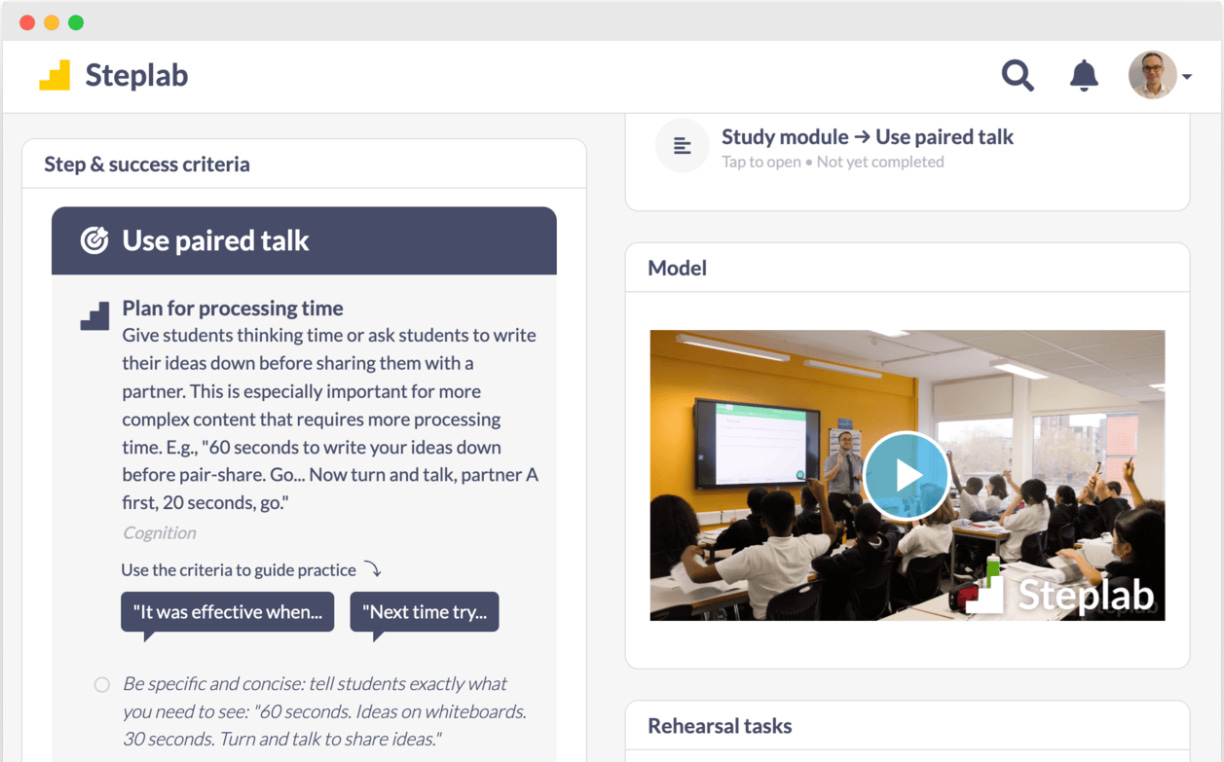
Here’s where some “scaffolding” can go a long way in helping novice teachers. Instructional Routines offer pre-built structures that have been vetted and proven useful for teaching specific content. David Wees is a veteran math educator who has a very useful compendium of such routines for specific math topics. There are other structured pedagogies that likewise can be helpful — Steplab is better known in England and Australia than the US, but many of its “steps” are well designed, in my view. At a glance:
Whether you like these particular examples or not, there is zero question that novice teachers can benefit from structured pedagogies — in fact, they often beg for these sorts of tools. More veteran teachers might benefit from using them, but as the years progress, they often develop their own routines that that have proven effective in their contexts. This is good, we don’t want to change this.
Three additional points on this topic.
First, there’s a broad range of the types of thinking an educator might want to generate in the minds of students. Dylan Kane, another veteran educator who I’ve learned so much from, illustrates this nicely. Recently, he wrote about his approach to build math fluency through use of repeated practice around simple multiplication drills — his ultimate objective being to secure these skills in long-term memory. A drive-by analysis of his teaching might call this “rote” learning, but Dylan is explicit about the “why?” of his approach, and he’s got a clear learning goal firmly in mind. What’s more, swing by Dylan’s classroom on a different day, and you might find students hopping up and down the stairs or playing with dominos to learn about the Fibonacci sequence, a lesson that won him a prestigious national math award.
Different goals lead to to different pedagogies. This is how it should be. And please note that with state-mandated, highly prescriptive lessons, not only does teacher creativity go unrewarded, it’s expressly prohibited, and perhaps even punished. No bueno.
Second, beware the danger of relying on scaffolds alone. The omnipresent risk of using an Instructional Routine or Steplab step or anything similar is that the teacher may think it’s sufficient unto itself for learning. As I argued recently, this video of Mr. Raichura employing direct instruction techniques illustrates the danger in over-indexing on the surface features of teaching — it’s possible that students were learning the core content here, but it’s alsopossible they were just playing along with the various routines, and not really thinking about anything meaningful. Routines and scaffolds are not sufficient to ensure effortful thinking by students, and they may even be deceptive if teachers start to think that orderly classrooms are the primary end-goal. (Many “No Excuses” charter schools made, and perhaps still make, this mistake.)
Third, perhaps you see why I’m hostile to using AI for lesson planning? Teachers must think about the “why?” of their lessons — this question sits at the core of their professional judgment and expertise. Relying on a mindless tool to generate text that purportedly constitutes a “lesson plan” is generally not helpful toward that end, and I wish people in education would stop pretending otherwise. Teaching demands effortful thinking by teachers as much as it does students. Please do not automate this process.2
3. Plan for failure.
Educators must plan for what they’ll do when an activity within a lesson doesn’t work as intended.
Many years ago, Michael Pershan, another veteran educator I’ve learned so much from, wrote a long essay about “Mrs. Oublier,” a pseudonym for a real math teacher. In his essay, Pershan made a tiny side point that’s both funny and important regarding how things might go wrong when teaching. You see, Mrs. O was a fan of using “manipulatives” (physical objects) to teach math concepts, and one day she decided to give her students some beans to count with. This stressed Pershan out:3
I have been teaching 3rd and 4th Graders for many years and the idea of giving kids those little cups of beans gives me minor terrors. What if the cups spills? How early do you have to get to school to set up the beans? What if a kid eats a bean?
Teachers must imagine how things might go wrong within a lesson, and have a plan for what to do next. I structure my workshops in what I call “accordian” format, if things are humming an activity can be stretched out, but if they go sideways, I’m always ready to cut the task off and switch to something else. To be sure, this is where delivering a one-off workshop is very different from daily classroom teaching, where teachers are obligated to cover required curriculum and academic standards. I have more degrees of freedom.
Nonetheless, even in K-12 classrooms, teachers should plan for keeping things moving and having off-ramps at hand. Pershan’s model is what he calls fussy teaching:
Ask students to do less, more frequently.
Every student answers every question.
Teacher controls the pace.
Switch modes often.
Is this direct instruction? Pershan thinks so, as he explains in his recent essay contending direct instruction is actually the norm in US schools — but I’ll leave that debate for the chattering class. For me, the more interesting pedagogical conversation would explore when fussy teaching will work (or not), whether certain students will like it more or less than other forms of teaching, what problems it solves and others it creates, how many modes can realistically be planned for within a lesson, and so on. The meaty conversations around pedagogy require digging into these details. (And all schools should create more time and space for teachers to have these conversations with their colleagues.)
This is where the misguided notion of scripting lessons really starts to run aground. Even if we leave aside the demotivating aspect such an approach will have with human teachers (and we should not), as a practical matter no script can prepare you for the diverse range of things that might happen on any given day. Life is inherently unpredictable, and so too are lessons — teaching is improv theater, not a paint-by-numbers exercise.
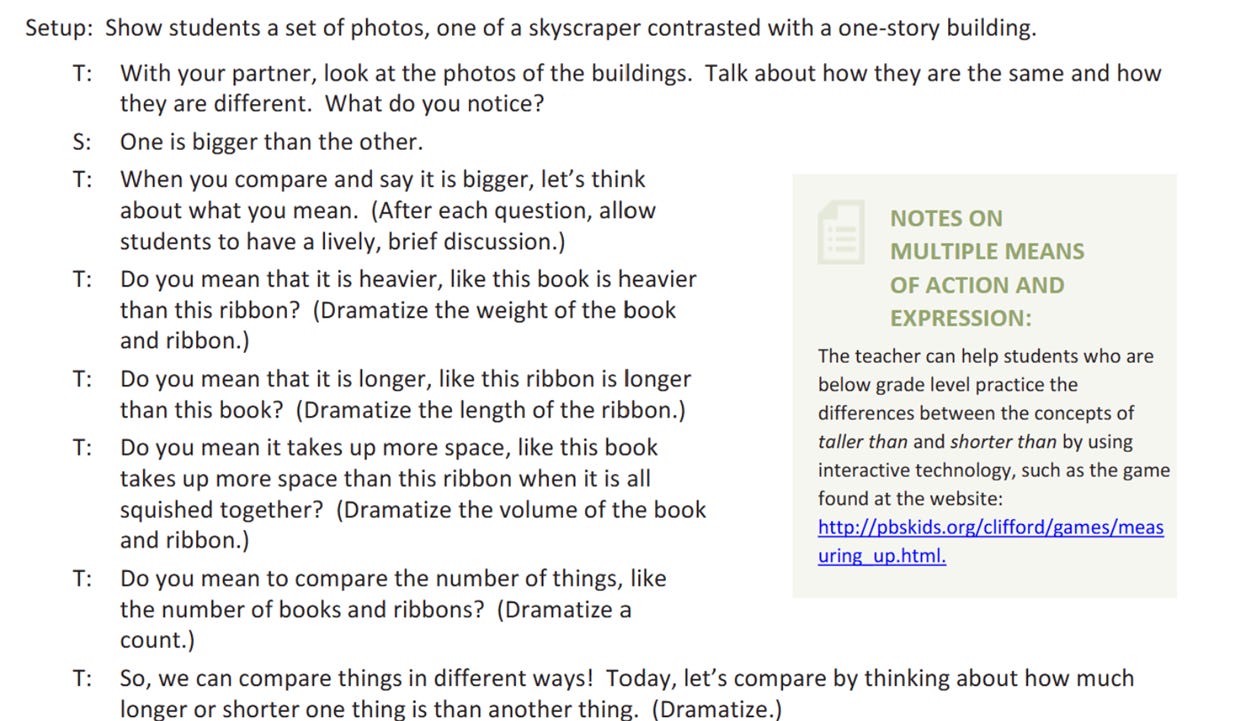
But are teachers really given scripts? Are routines and steps just scripts by another name? Yes to the former, no to the latter. To illustrate by counterexample, let’s look at this script-like lesson from EngageNY, an entity that once infuriated teachers with regularity:
Everything about this weird Platonic Form of a lesson is ludicrous — “dramatize a count,” that’s the guidance to educators? In what world will students engage in a “brief and lively discussion” comparing a skyscraper to a one-story building? Absurd. By the way, many AI-generated lessons, perhaps trained on EngageNY materials, sing in the same key as this, and they are equally useless.
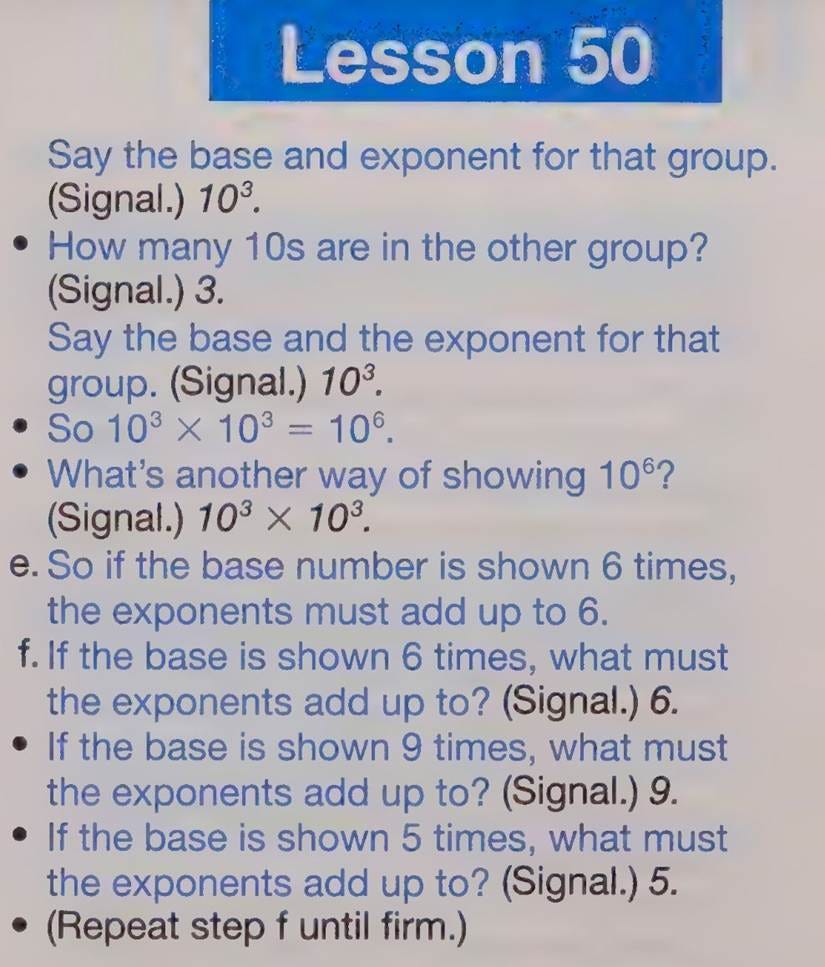
Here’s another script-like lesson from a Direct Instruction teacher’s guide, courtesy of Pershan again:
Excrement. That’s what I think of Direct Instruction Lesson 50 on bases and exponents. Rip it out, rip it out I say!
More soberly, I often reflect on a sad moment that happened early in my adult life, one that underscores the inherent unpredictability, and often heartbreaking tragedy, of any given day in the classroom. While in law school, I volunteered once a week in my first semester to “teach law” to local high school students in New Haven. One day, my student Novis, usually one of the louder kids in class, had his head down on his desk, completely disengaged — very unlike him. “Head up Novis, I need you to pay attention,” my ridiculously unprepared and ignorant self said. And that is when one of the other students motioned me over, and quietly told me that Novis’s brother had been shot and hospitalized the day prior.4
Teachers — especially those in “underserved” communities, our euphemism for the poor — face this sort of tragedy all too often. My experience with Novis, and my visits to schools in every corner of this country, informs my enduring perspective that teachers must always be ready to exercise conscious judgement based on the circumstances of any given day. Denying that is offensive to teacher professionalism, and to just being a sentient human. Humane schooling both demands and offers more than scripts can ever provide.
4. Make learning visible.
The goal is set, the task is at hand, the dangers have been considered and hopefully mitigated — we reach the fourth and final step, which is to have a plan to make student thinking explicit.
This is where education jargon such as “formative assessment” and “check for understanding” enter the picture. In every learning activity, there must be some method to obtain objective information on whether the learners actually learned anything. This can happen during the lesson, at the end of the lesson, or even further down the road, but somehow the teacher must gather empirical evidence — a fancy term for “something observable” — of how the lesson cashed out. There’s a massive amount of literature on this which I won’t survey here, but Dylan Wiliam’s website contains a treasure trove of useful resources regarding formative assessment. Likewise, Jennifer Gonzalez and her collaborators over at Cult of Pedagogy have compiled many helpful resources on assessment generally.
Two additional and perhaps controversial points on assessment.
First, I recognize that several decades of high-stakes testing for accountability purposes have left a bitter taste in the mouths of many teachers regarding testing, which is one form of assessment. I get it, and we definitely need to put an end to those policies, but we can do that while nonetheless embracing the vital role of assessment in classroom practice. This is where I break from some of my more woo teacher friends who claim they “just know” that their students learned something. Maybe they did, but maybe they didn’t, and relying solely on vibes does a disservice to the profession of teaching, and ultimately, to the obligation of ensuring students learn. Gather evidence through assessment, then reflect and revise as needed. We can be for this while also being against test-based accountability policies, our minds contain multitudes.
Second, I say this respectfully but firmly to educators in higher education: This is a massive “growth area” for many of you, which is the polite way of saying many of you don’t do this well, if at all. There’s an unfortunate assumption in higher education that the responsibility of learning largely falls to the students, that it’s on them whether they attend the lectures, do the homework, prepare for exams, etc. That’s somewhat true, but far more attention and effort must be made by professors (and their grad students) to assess whether students are learning along the way. Instead of focusing on “covering the syllabus,” efforts need to be reoriented toward assessing student learning throughout the course, not just at the end of it. Educators at universities could learn a lot from their professional K-12 colleagues about how to do this.
So that’s it, that’s my little mental model to effective instruction. There’s so much more to teaching than this, of course, but I wanted to lay my marker down in the Great Instructional Debates of 2026.
In sum, routines mostly good (especially for novice teachers), scripts always bad, avoid AI please, and remember to always think about the “why?” of the lesson. If we focus on these sorts of pedagogical questions, and eschew distracting ideological debates about hyperspecific and generally unpopular pedagogies developed in the 1960s that were “validated” by shoddy research — to pick an example at random — we might just make some headway at collectively improving teaching and learning.
“That the powerful play goes on, and you may contribute a verse.”But also:
There’s a robust debate within cognitive science on whether mental models, sometimes called mental representations, are really a thing. I’m not going to wade into that here other than to say that any sort of planning involves imagining a future state — plans may be useless, but planning is essential. As such, I find the concept of mental models very useful for teacher preparation and teaching itself.
Somewhere I picture my friend Stephen Fitzpatrick — I hope we’re still friends, Fitz! — shaking his fist at me, because he’s used AI to provide feedback on his lessons that he’s found very helpful. For me, that’s a less concerning use of AI, but he also has several decades of classroom teaching experience to evaluate the “feedback” a chatbot provides. The risk I worry about is novice teachers turning to AI before they have firm mental models of their own.
There are few things I regret more in my life than not staying in touch with Novis, he was so clever. I’ll never forget when I started lecturing about going to court, and he yelled out, “Man, everyone always talkin’ about COURT. My mom go to COURT. My dad go to COURT. When I drink milk, I drink a QUART.” Oh, how I hope he is still somewhere out there in this world, joking and laughing and thriving!
Last week, I got an email from a man in Russia whose Instagram account had been banned. “I have now lost access to 13 years of personal photos, videos and memories,” he wrote. “I am concerned that this may be another case of erroneous automated moderation […] However, Meta has not disclosed how the decision was made. Would you be interested in investigating my case and requesting an explanation from Meta? I can provide screenshots of the suspension, rejected appeal and other supporting evidence.”
The email seemed AI-generated, like many others we have gotten recently. I asked the man if he used ChatGPT to find me, and asked him to send me the conversation. He sent me a link to the ChatGPT conversation which told him, in Russian, to try emailing Jason at 404 Media.
“How can I get my account back?” the man asked ChatGPT on Wednesday. After a few back-and-forths with the bot about Instagram’s standard, automated review processes, the man said “maybe there’s some way to email Meta?” ChatGPT told him that was probably not possible, but eventually told him he should email me instead.
“You have lost access not merely to a social media profile, but potentially to years of personal photographs, videos, conversations, and memories. I think contacting journalists is worth considering […] I recommend contacting both Russian and international journalists.”
ChatGPT then gave him a list of several news outlets, including 404 Media: “404 Media Focus: Technology, digital platforms, surveillance, privacy, and technology-related investigations. Email: jason@404media.co.” It then wrote him the exact email he sent me, in English.
Because big tech platforms essentially do not have customer support and make it impossible for their users to contact a human, many people experiencing run-of-the-mill tech problems have turned to ChatGPT. And, increasingly, ChatGPT is telling people that have normal tech support problems that they have discovered something journalistically notable and that 404 Media, specifically, can help them. Around two weeks ago, we started emailing these people back and asking them how they found us; universally, the answer is that an AI chatbot recommended they reach out to us and, in many cases, the chatbot wrote the email, according to reviews of a handful of ChatGPT conversations shared with 404 Media.
It’s time to install an app! But here in 1986, we still call them “programs,” not apps. So, you’ll want to set aside some time to get started installing a program.
Since you have a Commodore 64, there are really only two options for getting new programs this month: COMPUTE!’s Gazette and RUN, and you have to hope that one of those magazines isn’t sold out at the book store. So let’s get going.
Go To The App Book Store
You will need to ask your mom if you can ride your bike to the mall. The dirt mall is closer, but the magazine stand at the dirt mall doesn’t carry any computer magazines, so you’ll need to take a longer ride to the good mall, where the book store actually has computer magazines. It’s a couple of miles to the mall, so usually you would have a friend come with you, but you called their house and nobody picked up, so today it’s a solo trip.
Only one book store carries computer magazines at this mall; the other one only carries magazines about “serious” topics, but they can order back issues of a magazine for you if you want, you just have to wait a few weeks and they’ll call you when it comes in.
The guy at the book store doesn’t know the difference between the different computer magazines, so you can’t ask him if they have the one you want in stock, and he’s probably not going to answer a kid anyway. So you just have to go through all the titles one by one, and hope nobody put a copy of People or Omni in front of it by accident.
There are no ratings, and no reviews of the programs themselves. The closest thing you get is the magazine’s own reviews of hardware — modems, mostly — and a cover that promises you the issue has the thing you want. This month’s cover has a “Buyer’s Guide To Modems” banner across the top.
Once you’ve got a copy of COMPUTE!’s Gazette and you’re checking out at the store, you can see that it’s three dollars for the magazine (about nine bucks in 2026 money). If you’re lucky enough to have a five dollar bill, you’ll still have two dollars left over after buying the magazine. That means you’ll have enough money to swing by the record store later and grab a 45 of one of the new singles, like Sheila E.’s “A Love Bizarre,” written by Prince, or The Bangles’ “Manic Monday,” written by Prince, or Prince and the Revolution’s “Kiss,” written by Prince.
Pick Your Program
Now it’s time to race home with the new magazine in hand. You’ll have to wait for everybody to get off of the TV that’s by the computer so you can switch it over to the channel the computer is on and get down to work.
Turn on the switch, and you’re at the blinking blue cursor where it says READY. while the screen is still warming up a bit.
When it comes to installing apps programs, it’s all about options, and this month, we’re spoiled: there are two! They’re both games: Survivor, an arena game where, “if you’re quick of mind, eye, and hand, you might outfox your opponent,” and Shifter. Truly, an embarrassment of riches. Since Survivor is the one on the cover, we’ll go with that one.
(Two or three programs a month is pretty typical. That’s… the app store.)
Type It In
Getting this program running is standard stuff — you just read the article on page 36 that describes the game, and then flip to pages 106 and 107 where there’s the code for a short BASIC loader, and then continue on to pages 107 and 108, where there are 345 rows of densely-packed listings consisting of 9 hexadecimal character pairs, all of which have to be typed in perfectly with zero errors or else your entire game will refuse to run.
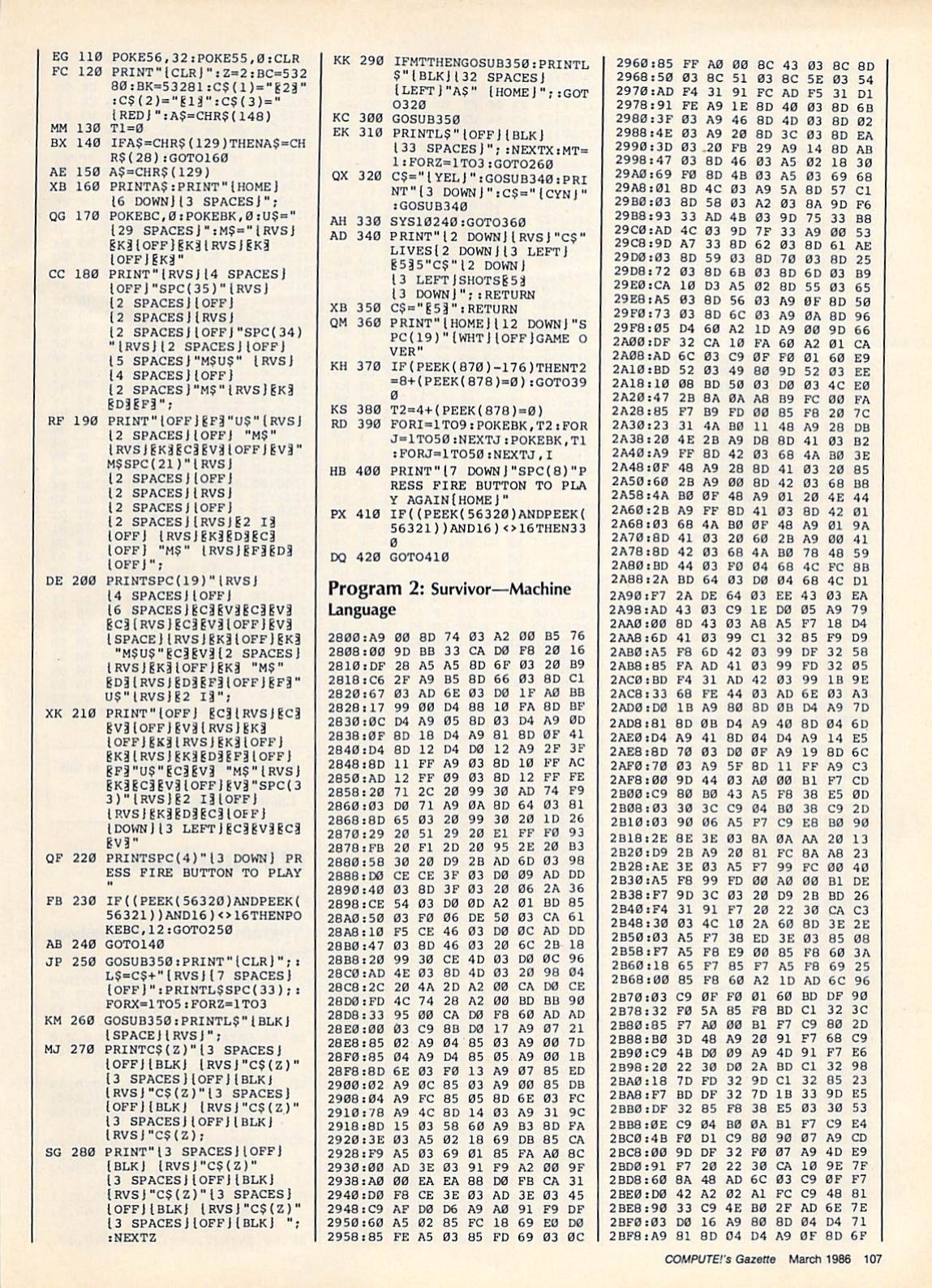
A quick sample of the early part of your task looks like this:
After you’re done typing that page in, you’re about a quarter of the way done, assuming you didn’t make any mistakes.
Wait, what’s that? Where are you supposed to be typing these in? Simply type them into the MLX program where you… wait, what’s that? You don’t have the MLX utility that’s used to type in machine language code for games and programs listed in the magazine?
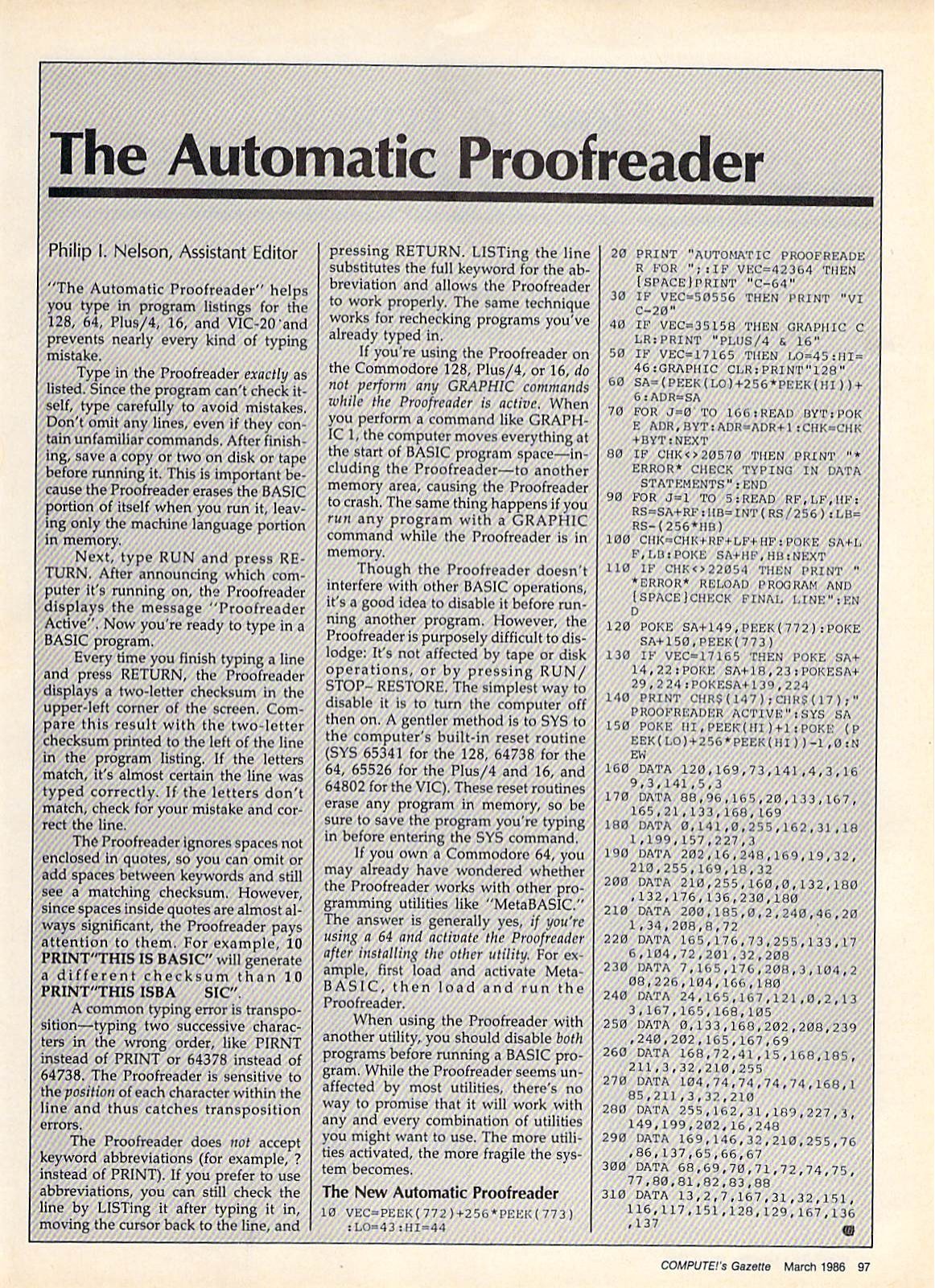
Oh, don’t worry, you’ll just need to type in the code for that program. There’s an article explaining what MLX is, which you can read really quickly on page 93, and then you’ll find the code for it on page 94. That one’s only 100 lines of code, so it should be easy enough to type in. And of course, you’ll know if you made any mistakes when typing, thanks to the Automatic Proofreader.
Wait, you don’t have the Automatic Proofreader program?
Well, no worries. It’s only another 31 lines of BASIC code, which you can find on page 97. (This one you have to type in perfectly on your own; there’s no proofreader for the proofreader.) Once you do that, you’re all set.
Now, you can just use the program that lets you enter the program to make your program. It should only take about half an hour to type in the code for the Automatic Proofreader, and maybe another hour or two for MLX. Let’s call it two hours total between them.
After that, Survivor is ~30 lines of BASIC plus ~350 lines of hex code, so… maybe six hours? But at least MLX will catch any typos as you go.
Once all of this is complete, be sure to save your work to a floppy disk so you don’t have to type it all in again! If all you have is a cassette deck and you’re saving to tape, it’s going to take probably 10–20 minutes of staring at a blank screen when you save, so set aside some time for that.
In total, it should only take you about 8 hours to have Survivor ready to play, plus however long it takes you to get to the mall, buy a magazine, and come back.
Ready To Play
(Click or tap to get started.)
[This is Survivor by Kevin Mykytyn and Mark Tuttle, from COMPUTE!’s Gazette, March 1986, running in the VICE emulator. The game loads and runs on its own, which takes a few seconds.]
Controls: the yellow player uses W/A/S/D to move and F to fire; the cyan player uses the arrow keys to move and Enter to fire.
Next Steps
The Download
Someday, rather than typing all of this in, you might be able to use your 300 baud modem to download already-created versions of these games and tools. You could dial a local BBS, if there’s one nearby. If you’re unlucky, the only one you can reach is a long-distance call, and you’ll be paying by the minute for as long as you’re connected. Or you could look for a local dial-up number for the Quantum Link online service (which will eventually evolve into America Online!).
Transfer times can range from tens of minutes to hours, and of course during those calls, you are tying up what’s usually the sole voice phone line for the household. Anyone picking up a phone handset in the house threatens to knock your connection offline, forcing you to start the whole process all over again.
Customization
Now that you’ve enjoyed your game of Survivor, there are some fun ways to customize your little computer and give it a personal touch.
Just for context, here’s a to-scale comparison of the screen resolution of your Commodore 64 to the dimensions of an iPhone Duo’s unfolded screen.
Hover over (or tap) the comparison to see a C64 prompt and an App Store icon at the same scale.
You can’t change the wallpaper on your Commodore 64, but you can easily change the background colors for both the center area of the screen and the border. All you have to do is manually assign the proper numeric color code to the correct memory register corresponding to the values of each of those settings.
Memory address 53281 will set the background color for the primary content area, and a color code of 1 sets a nice readable white background, so it only takes a simple POKE 53281,1 command at the prompt, and you’re all set. Similarly, POKE 53280,4 will make the border of the screen a nice bright purple color, and of course there are a full complement of 16 colors to choose from.
Naturally, none of this customization is stored anywhere permanent, and it will all be lost if you turn off your computer or run a program.
READY.
I hope you’ve enjoyed this brief overview of how to get one game running on your Commodore 64, and perhaps gained a little appreciation for how things have gotten a bit simpler over the years.
Also, I will be entertaining a motion to return to calling our software “programs” instead of apps once more. Perhaps we could use the term to distinguish the software that’s created by humans actually typing things in, as opposed to the kind that’s merely generated by machines?
I used to like websites. I had my own—several, in fact—that accompanied a zine I sent out weekly. I had websites inside of websites, like Neopets, where I spent hours and hours perfecting my Starry Shoyru's pet page: custom graphics created in a bootleg version of PhotoShop, sparkly icons I animated myself, all tied together with the HTML I learned from other websites and pet pages. Most websites are awful now. (Not this one.) The website I used to work for freezes my browser almost instantly because of its invasive ads. Forget trying to read any website on my phone; if the page loads, I can hardly even see text. Looking at social media is a nightmare for too many different reasons.
It's rare to discover a new website that isn't filled with horrors. DogOnline.net is one of the few! I had not heard of Dog Online until I read a Kotaku story by writer Amelia Zollner. I had a feeling I would like Dog Online after Zollner described it as "bringing back 2000s internet culture." It's perfect.
Image: Dog Online
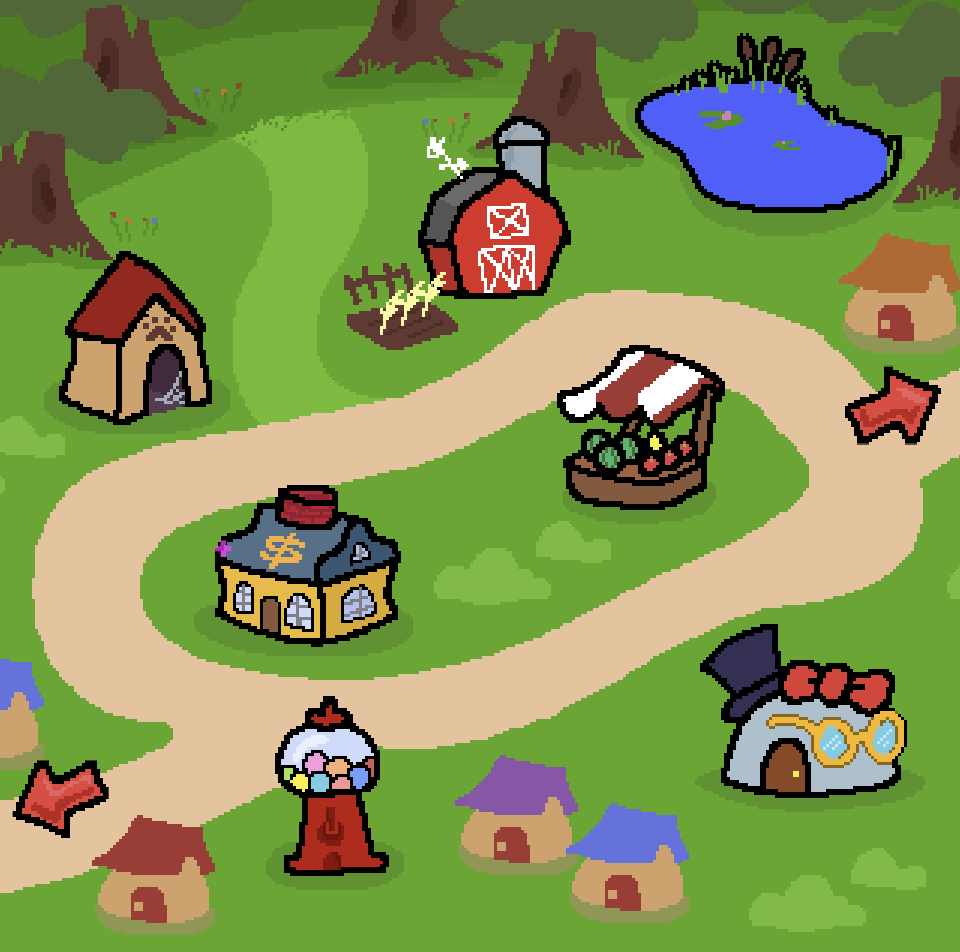
Dog Online is a virtual pet browser game, like Neopets, that’s been in open beta for a few months. Everything is charmingly drawn as if it was done in MS Paint, and the explore page, where the map is, is reminiscent of my beloved Neopets map. There is a bank, a farm, a dog pound, and a Dog Online version of Hot Topic: Hot Dog Topic.
I adopted a dog, a scruffy grey one, and called her Bruin. It is Pumpkin Week, which is a monthly event (lol) in which pumpkin baskets are handed out. Bruin found one, and is now wearing the adorable pumpkin costume that was inside. There are different biomes to explore, little ponds to fish in, and a fairly deep turn-based roleplaying game called the Lonely Tower. I have a toy box in which I can decorate the screen; currently I have a rainbow sparkle trail followed by a vintage cursor, and a tennis ball I can bounce around at the bottom of the browser window.
And, of course, you can make your own website for your dog. I haven't played around with this yet, but I am charmed by the people who have. What does the website say? I don't know! I can't read it over the busy rainbow ghost background. And it's just the way I like it.
I've spent just a little bit of time each day on Dog Online most days this week. Pop in, check on Bruin, and plod through the shops. Try to set a new record for bounces in keep-it-up with the browser tennis ball. Plot out what sorts of items I want to try to collect. It's just the way I like it, a simpler version of the dailies I used to do daily in Neopets.
One of the developers behind Dog Online told Kotaku the website was launched into public beta on April 1, but the game's had a bit of an increase in traffic in October, and now there are more than 10,000 users. I'm eager to see what Dog Online becomes as the developers continue to work on it and players continue to sign up.
Neopets, as you probably know, is not what it once was. For a long time, Adobe's Flash shutdown left Neopets almost entirely broken. Neopia Central looks familiar, but the insidious nature of the modern internet has not just creeped in, but flooded in. Everywhere Neopets is trying to sell stuff: Neopia Central now highlights, with two big ol' moving strobe lights, the real money marketplace. I opened Neopets this morning, the first time in a bit, and the first pop-up was reminding me to click the ad button in the top-left corner to watch an ad for "free" Neopoints. A real bummer!
Dog Online feels like what I remember of playing Neopets as a kid. Back to the good internet!
 Log in